
CMOgpt AI using Claude
Connect CMOgpt to Claude and start asking questions about your Shopify store.
CMOgpt helps ecommerce merchants turn Shopify performance data into clear business advice.
When you use CMOgpt inside Claude, Claude can access your CMOgpt metrics, ecommerce benchmarks, business rules and advisory skills. This lets you ask plain-English questions such as:
-
How is my store performing?
-
Where am I underperforming?
-
Is my marketing spend paying back?
-
Which customers are worth keeping?
-
What should I do next?
CMOgpt is read-only and secure. Your store data stays connected through your CMOgpt account.
Who this is for
CMOgpt runs on Claude, because Claude currently has the strongest reasoning available. That means you'll need a Claude Pro, Max, Team, or Enterprise plan to use it.
This guide walks you through installing the CMOgpt MCP connector on the Claude desktop app. Takes about 5 minutes.
Try first
Just want the fastest taste? Get the Claude AI demo from /try-claude.
Step 1: Add the CMOgpt plugin marketplace
In Claude, go to Customize > Add > Add from a repository.

Enter the GitHub repository
Leave Sync automatically on so you always get the latest version, then click Sync.

https://github.com/CMOgpt/CMOgpt-production-install
Step 2: Install the CMOgpt plugin
Once the marketplace syncs, find CMOgpt — AI CMO for Shopify under the Discover tab and click Add.

Once added, the plugin shows up under Customize > Yours, listed under "From marketplaces you added."

Step 3: Connect the CMOgpt MCP connector
Open the installed plugin and go to its Connectors tab. It will show Not added — click Connect.
In the Add custom connector dialog, enter:
Name : CMOgpt
URL : https://www.cmogpt.io/mcp

Step 4: Finish OAuth setup and set tool permissions
On the OAuth screen, leave Register automatically selected (Claude detects this automatically) and click Add.
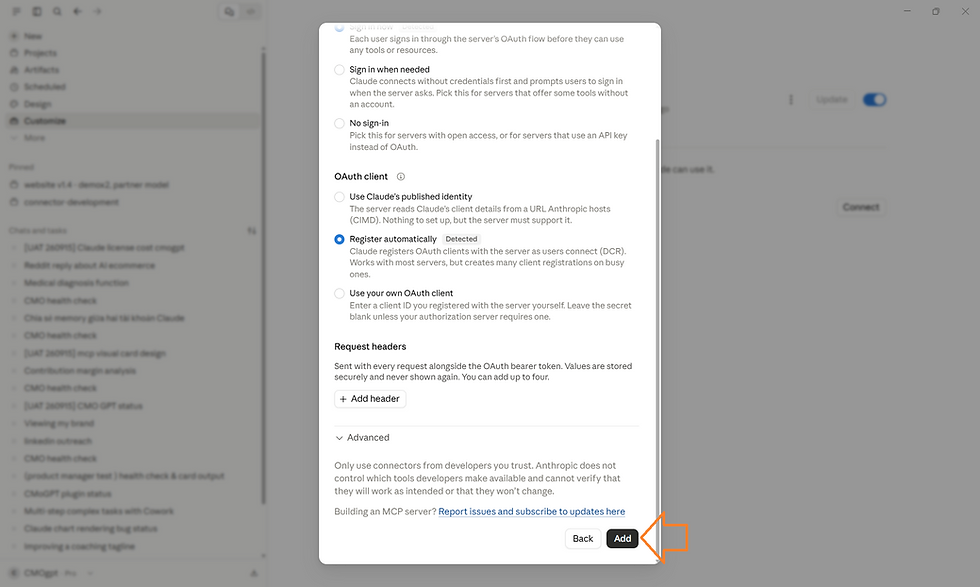
You'll land on the Connectors screen showing "You're not connected to CMOgpt yet." Click Connect again.

Back on the CMOgpt connector page, set tool permissions to Always allow so Claude can pull your store data without asking each time.

CMOgpt will prompt you to link your store. Enter your shop's website URL and click Connect.
Step 5: Connect your Shopify store

Step 6: Confirm it's working

Start a new chat or task or type a command like /cmo-health-check.
Start using CMOgpt in Claude
Open a new Claude chat.
Start typing:
/cmo
Claude will show a list of available CMOgpt skills.
You can choose one of the skills, or simply ask your question in plain English.
You do not need to use exact commands.
For example, you can ask:
-
How is my store doing?
-
Where am I underperforming?
-
What should I do next to improve profit?
-
Is my marketing spend paying back?
-
How profitable are my customers ?
-
Which metrics need attention?
Useful CMOgpt skills in Claude
When you type `/cmo`, Claude may show skills such as:
/cmo-health-check
Use this for a weekly business health review.
/cmo-diagnose-growth
Use this when you want to understand whether the store is growing well, growing with risk, or needs attention.
/cmo-diagnose-metrics
Use this when you want to drill into specific performance metrics.
/cmo-adjust-marketing-spend
Use this when you want to review marketing spend and decide whether to increase, reduce or hold spend.
/cmo-diagnose-contribution-margin
Use this when you want to understand margin, contribution profit and where profit may be leaking.
/cmo-get-ltv-segment
Find your profitable customers, understand their purchasing behavior, so that you can set a growth and retention strategy.
/cmo-get-cohort-analysis
Use this to track the return purchase behavior of customers acquired in the past, to refine your sales and marketing strategy.
You can select a skill, but you can also ask naturally. Claude will use the relevant CMOgpt skill where appropriate.
Disconnect
Customize → CMOgpt → Connectors → choose the CMOgpt connector → Disconnect.
Reconnect any time.
Troubleshooting
Make sure you have installed Plugins, not just Skills or Connectors.
See the section on Install (above).
I cannot find CMOgpt in Browse plugins
Claude says I am not connected to CMOgpt
Go to:
Customize → CMOgpt → Connectors
Click Connect and enter your Shopify store identifier.
My store metrics are not ready yet
If you just signed up to CMOgpt, wait for confirmation that your Shopify metrics are ready.
Once your metrics are ready, return to Claude and connect the CMOgpt connector.
Need help?
email us at:
andrew@cmogpt.io